Build Survive Controls and UI Guide
Master Build, Delete, Paint, Base teleport, Settings, Saves, and the Shop on PC and mobile.
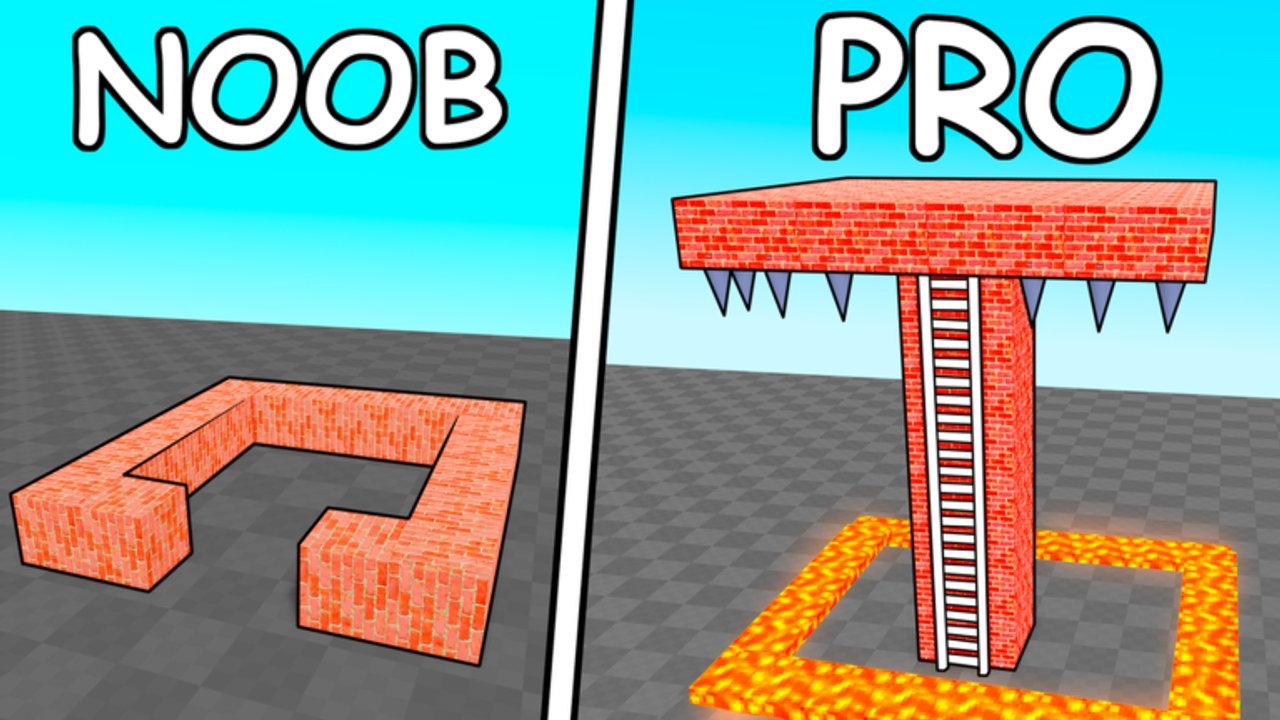
Every Cash-efficient base in 🛠️Build and Survive starts with clean UI habits. This controls guide covers Build, Delete, Paint, Base teleport, Settings day/night, Saves / reset, the Shop and kits, plus mobile versus PC notes for Rainy Creations’ free Roblox survival builder (released 25 March 2025, autosave, up to six players). Use it as a desk reference while you follow Getting Started, raise towers in Best Base Builds, and outlast packs in Survive Monster Waves.
For spend priorities open the Tier List, Blocks, and Build Kits. For friends and anti-grief rules see Players. For patch and code checks see Updates and Codes (no working codes as of November 2026). Avoid sketchy automation listed under Scripts.
Movement and camera (shared Roblox baseline)
On PC, WASD moves, Space jumps, Shift may sprint depending on your Roblox settings, and the mouse aims the camera. On mobile, the left virtual stick moves and the right drag zone turns the camera; jump is an on-screen button. Pinch or use the Roblox menu to adjust sensitivity if sky towers make you dizzy.
Camera discipline matters during waves: pull back far enough to see flankers at the base of your pillar. First-person cosplay looks cool in Paint sessions and terrible when a soldier squad climbs your forgotten stair.
Build mode
Tap or click Build to open the block and kit catalog. Select a piece, move the ghost preview onto your plot, and confirm placement. Snapping favors grid alignment—nudge carefully on mobile so you do not waste Cash on floating misclicks.
Best practices:
- Place a Spawn platform before decorative spam.
- Build temporary stairs intentionally; plan to Delete them later.
- Keep one hand ready to exit Build when the wave countdown enters the danger window.
- Prefer functional shells over furniture until Survive Monster Waves feels easy.
Build mode is also where prefab kits appear after Shop purchases. Modern House-style kits drop elevated interiors you can lock—powerful height cheese described in Best Base Builds and ranked on Build Kits.
Delete tool
Delete removes blocks you are allowed to edit. It is not only an undo button—it is a combat tool. Climb a tower, Delete the stair, and many monsters lose pathing. Seal a doorway by deleting the gate cubes during the final prep seconds, then rebuild after Cash lands.
Rules of thumb:
- Never Delete a teammate’s support beam without consent.
- Confirm you are not deleting your only Spawn platform.
- On mobile, zoom closer before tapping tiny blocks to avoid wrecking a wall.
- If you mis-delete, rebuild immediately; autosave will persist the mistake if you leave in panic.
Path denial strategies are central to Best Base Builds.
Paint tool
Paint recolors eligible blocks. Some colors are free; premium swatches may cost Robux. Paint does not stop zombies. Use it after a layout survives several waves, or when you are flexing a finished pyramid for screenshots.
You can sometimes help paint on a friend’s structure when the game allows collaborative edits—ask first. Bright colors help teammates spot the shared tower in a busy six-player server, which supports the etiquette goals on Players.
Base teleport button
The Base control snaps you back to your home area / Spawn-centric plot. Use it when you:
- Wander into another player’s maze mid-prep.
- Die far away and need to regroup before the next beep.
- Scout kits on the Shop island (if present) and must return fast.
Muscle-memory the button location on both PC HUD and mobile thumb layout. Teleport does not replace a well-placed Spawn; it complements it.
Settings — day / night and comfort
Open Settings to toggle day/night lighting and other comfort options. Bright day helps precise Build snaps; stylized night looks cinematic but can hide ground packs. Choose readability over vibes while you learn. Graphics sliders belong here too—drop quality on phones if placing blocks stutters during the countdown.
Remember: soldier-style pressure can happen in daylight. Lighting preference never excuses a late seal.
Saves and reset
🛠️Build and Survive autosaves your structures so quitting Roblox does not wipe the plot. The Saves UI also exposes reset / load style actions for when you want a clean slate. Resetting is irreversible from a progress perspective—screenshot anything sentimental, warn co-op partners, and replace Spawn immediately after a wipe.
If a save looks wrong after a patch, check Updates before assuming corruption. Do not download “save editors” from random Scripts pages.
Shop, kits, and Cash sinks
The Shop sells build kits, convenience passes, and flashy tools. Cash from surviving waves funds many blocks; Robux funds premium kits and cosmetics. Recommended purchase order mirrors the economy advice in Getting Started:
- Functional free blocks and Spawn.
- Height pieces.
- Sealable rooms.
- Ranked kits from Build Kits.
- Paint premium and novelty weapons last.
Expensive clear tools (Ban Hammer-class, invincible toggles, magic carpets) are luxuries. They do not teach Delete timing. Compare raw blocks on Blocks before you empty your balance.
Codes, when they exist, usually sit behind a Codes button on the left HUD—redeem steps stay on Codes. As of November 2026, none are working.
Mobile versus PC notes
PC strengths
- Faster ghost placement and camera orbits for pyramid frames.
- Easier precise Delete on thin stairs.
- Multi-monitor wiki reference while you play.
Mobile strengths
- Build anywhere; autosave loves short sessions.
- Touch drag is fine for big perimeter walls.
Mobile pitfalls
- Fat-finger Delete on shared co-op builds—zoom in.
- Wave timers feel faster when UI chrome covers the countdown; tuck menus closed.
- Consider simpler towers if thermals throttle your phone mid-swarm.
Shared tips
- Practice Base teleport twice before your first hard wave.
- Keep headphones on for countdown voice lines when the HUD is crowded.
- In six-player lobbies, assign who may Delete on the shared core.
Suggested hotbar mental model
Even without custom keybinds beyond Roblox defaults, think in priorities:
- Movement + jump.
- Build (place).
- Delete (seal / path deny).
- Base (panic return).
- Paint (post-wave only).
- Settings / Shop (prep phase only).
If you catch yourself opening Shop during the final ten seconds, close it—seals beat shopping.
Practice drills (five minutes)
- Place Spawn, three-block pillar, climb, Delete stair, wait ten seconds, rebuild stair.
- Build a one-door box, Delete the door, rebuild the door.
- Walk away, hit Base, confirm you land near Spawn.
- Toggle day/night twice; pick the readable mode.
- Open Shop, note one kit from Build Kits, close without buying unless Cash is surplus.
Run these drills after every major patch noted on Updates.
Related pages
- Guides Hub — full tutorial index.
- Getting Started — day-one loop.
- Best Base Builds — apply Delete and kits.
- Survive Monster Waves — timer discipline.
- Tier List — rankings overview.
- Players — co-op permissions culture.
- Codes / Updates / Scripts — live meta and caution.
Master the six verbs—Build, Delete, Paint, Base, Settings, Shop—and every guide on this wiki becomes easier to execute under a blinking spawn timer.
Frequently Asked Questions
Quick answers for Build Survive players.
What do Build, Delete, and Paint do?
Build places blocks and kits, Delete removes them (including stair paths and doors for seals), and Paint recolors eligible blocks—sometimes for Robux.
What is the Base button?
Base teleports you back to your home plot / Spawn area so you can regroup quickly after exploring or dying far away.
Does Build Survive autosave?
Yes. Structures persist between sessions. Use Saves carefully if you reset; rebuild Spawn immediately after any wipe.
Are controls different on mobile?
The same tools exist, but placement and Delete precision are harder on touch screens. Zoom in, simplify towers, and close menus before waves.
Where do I buy kits?
Open the Shop, purchase a build kit with Cash or Robux as priced, then place it from Build. Rank options on the Build Kits tier list first.